How to Use Claude Meetings: Setup, Live Notes and Privacy
Anthropic's help page and its launch post disagree on one default that matters for client calls. Here's the setup, the settings to check first and where it beats a normal notetaker.

Anthropic put Claude Meetings into beta on 12 November 2026, and within a day a YouTube video’s title said it kills Otter and Fireflies.
The first video I watched couldn’t demo it. Claude was throwing errors that day.
So I went to Anthropic’s own pages: the Claude Meetings help article, the launch post, the release notes and the status page, plus the pages of every rival I compare it with.
This guide is what they say, checked line by line.
The short version: Claude Meetings works only in Google Meet, only on Team and Enterprise plans, and keeps a transcript but no audio.
What sets it apart is the work: it builds docs, whiteboards and slides while you talk.
What we checked
On 14 November 2026 I read the help article (updated on launch day) side by side with Anthropic’s launch post, then checked our own account, and four things came out of it:
- The two pages disagree on outside guests. The launch post says Claude stays out if an outsider is invited.
- The outage was real. Claude’s status page logged elevated errors on 13 November from 13:09 to 15:38 UTC, naming Claude Meetings as degraded, then recovering.
- The setup link works: the Help Center link in the launch post opened the full article for us.
- Our own workspace already has a read-only Claude Meetings connector.
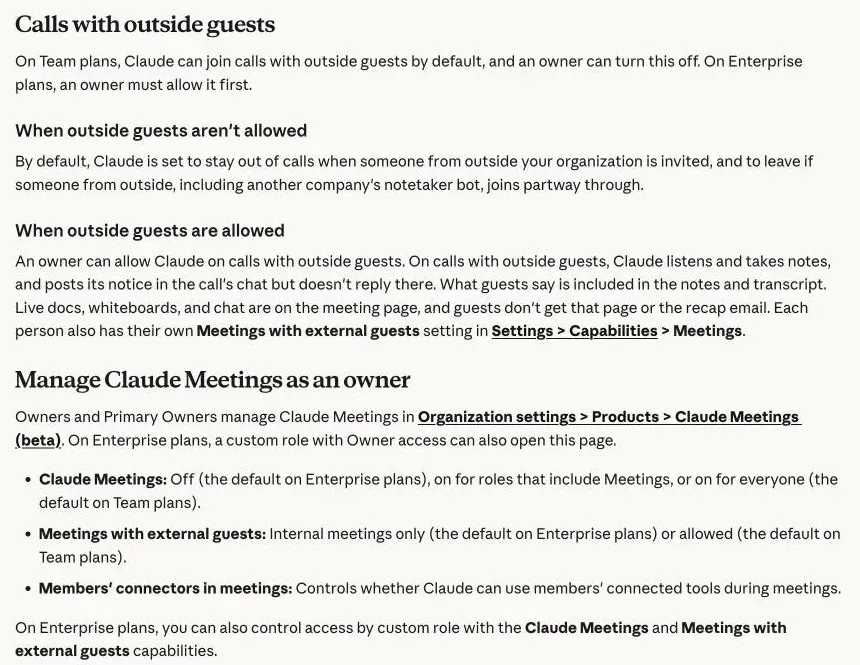
The help article says that stay-out rule is only the Enterprise default, and on Team plans Claude joins calls with outside guests unless an owner turns it off.
That connector sits in the Claude workspace we run publishmyblog.com from, and it can list meetings, read summaries, action items and transcripts, and follow a live call.
It returned an empty list, since we haven’t sent Claude to a call yet.
Its own notes say it lists only meetings Claude was sent to.
1. Check that you can use it
Before you hunt for a Meetings tab, check four things:
- Your plan. It’s a beta on Team and Enterprise plans, in Claude and Claude Desktop, per the release notes. Pro, Max and Ultra aren’t on the list.
- Your video tool. Google Meet only for now. Anthropic says other platforms are coming soon, with no names or dates.
- Your data setup. During the beta it’s unavailable to organizations with zero data retention, a HIPAA-ready configuration or customer-managed encryption keys.
- Your owner. On Team it’s on by default; on Enterprise it stays off until an owner switches it on.
Is your agency on Zoom with clients? Then this isn’t for those calls yet, however good the demo looks and however many posts say it kills every other notetaker.
2. Turn it on as an owner
Owners and Primary Owners find the switches in Organization settings, then Products, then Claude Meetings (beta), and on Enterprise a custom role with Owner access can open that page too.
Three settings. Decide each one on purpose:
| Setting | Team default | Enterprise default |
|---|---|---|
| Claude Meetings | On for everyone | Off |
| Meetings with external guests | Allowed | Internal meetings only |
| Members’ connectors in meetings | Decides whether Claude can use each person’s connected tools in a call | Same switch |
Enterprise owners can also turn it on for part of the company, using custom roles that carry the Claude Meetings and Meetings with external guests capabilities.
Then there’s the step people miss. Claude finds your meetings through Google Calendar.
On Team and Enterprise, an owner has to enable the Google Calendar connector before anyone can connect it, per Anthropic’s Google Workspace connectors page.
3. Add Claude to a call
Once your owner has done their part, it’s four steps:
- Open Meetings in Claude (claude.ai/meetings).
- Connect your Google Calendar.
- Pick a meeting from your calendar.
- Click “Add Claude”.
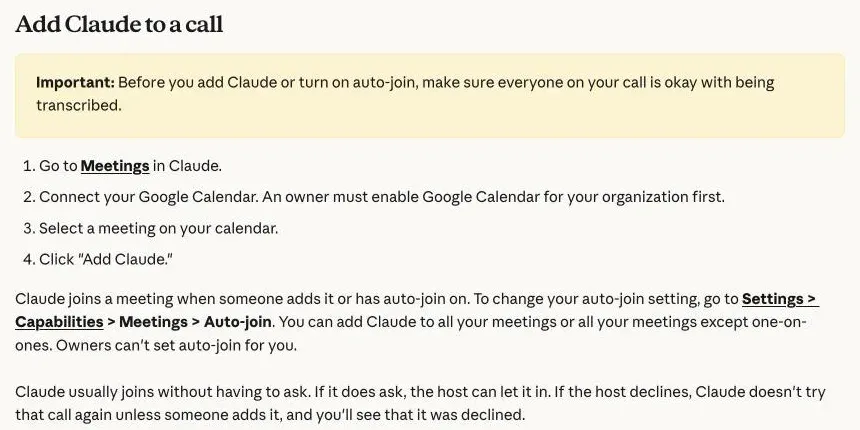
Don’t want to do that every time? Turn on auto-join in Settings, then Capabilities, then Meetings.
You can send Claude to all your meetings or to all of them except one-on-ones, and an owner can’t switch auto-join on for you, so that choice stays yours.
Usually, Claude joins without asking. If it does ask, the host admits it.
If the host declines, Claude won’t try that call again unless someone adds it, and you’ll see it was declined.
4. Ask it things during the call
Two ways to ask:
- Say “Claude” and then your question.
- Type it in the Meet chat.
Either way, it answers in writing, in the Meet chat, by default.
That matters more than you’d think. Ask for last quarter’s numbers from a connected tool, and the answer lands in a chat the whole call can read.
To build something, ask out loud: “Claude, make a doc” or “Claude, make a whiteboard”.
Anyone on your team can ask, as many times as you like, and the help article says every artifact type works. Slides too.
Each one is attached to the meeting page, where teammates on the invite can open it and edit it while you keep talking through the rest of the agenda.
Anthropic’s own example is a team planning a customer event: one person asks for a doc of the plan, another for the timeline on a whiteboard, and both grow while people talk.
A few controls you’ll use:
- Connected tools work mid-call (Anthropic’s example is sending a Slack message), each with that person’s own permission. It asks once, and that yes sticks.
- When someone asks out loud for a tool action, Claude confirms who’s speaking every time, for now.
- Claude’s tile in the call shows what it’s doing.
- To pause, ask it to stop listening or use the meeting page. You resume from the meeting page.
- To remove it, ask it to leave or click “Remove Claude” on the meeting page. It can stay up to eight hours and warns you before it goes.
Then open your meeting page from the link Claude posts in the chat when it joins, because the live transcript, an internal chat and everything it made sit there.
5. Find the notes, transcript and action items
After the call, the meeting page holds the notes (a summary and action items), the transcript and every doc or whiteboard, and teammates can edit what Claude made.
Everyone from your organization who was on the calendar invite gets a recap email with a link back to the meeting page.
You can share the page inside your organization, and outside guests get neither the page nor the recap email.
Two more ways back in:
- The Meetings calendar keeps past and upcoming calls, so you can reopen any meeting Claude joined or add it to the next one.
- In a normal chat later, you can ask Claude about any past meeting you have access to.
Need a whiteboard somewhere else? The Whiteboards help page lists “Send to” for Lucid, Miro and Zoho Vani, and a PNG export under Share.
Sending transcripts to Gong, Attention, Granola, Fireflies.ai, Otter and Plaud is only announced so far.
6. Clients, consent and privacy
When Claude joins, it shows up in the call as a visible participant with its own live tile, and posts a notice in the call’s chat for everyone to see.
It keeps the transcript, the summary and descriptions of what was on screen. It doesn’t keep audio.
Anthropic’s instruction is plain: make sure everyone on the call is fine with being transcribed before you add Claude. I wouldn’t count on its chat notice to do that for you.
Two setups, two behaviours:
- With outside guests blocked, Claude stays out of any call where an outsider is invited, and leaves if one joins partway. Another company’s notetaker bot counts as an outsider.
- With outside guests allowed, Claude listens and takes notes and posts its notice, but doesn’t reply in the chat. What guests say goes into your notes and transcript.
One more switch. Each person has their own Meetings with external guests setting, under Settings, then Capabilities, then Meetings, and it’s separate from the owner’s.
So you can keep Claude off your own client calls even where your owner allows it, and if you run an agency it’s the first setting I’d check.
What do you tell a client? I’d put one line in the calendar invite and say it again at the start of the call:
Claude (Anthropic’s AI assistant) will join to take notes and a transcript. It doesn’t record audio. Tell me if you’d rather it didn’t, and I’ll remove it.
Then mean it. “Remove Claude” is one click on the meeting page.
7. Limits and known issues
Here are the limits, all from Anthropic’s pages:
- Google Meet only.
- There’s no audio to replay. You get text and what Claude made, never a recording to clip.
- Guests miss the live docs and whiteboards.
- Everything in the Meet chat is visible to the whole call, while the chat on the meeting page stays inside your organization.
- Zero data retention, HIPAA-ready and customer-managed key setups are out for the beta.
- It went down with the rest of Claude in launch week (the 13 November incident above).
Still, the pages leave gaps. Neither says how long meeting pages are kept, which languages Claude transcribes, or whether there’s a monthly cap on meeting hours.
I couldn’t find those on Anthropic’s site, so ask your account contact first.
8. Claude Meetings vs Otter, Fireflies, Fathom and Gemini
These are the features each company states on its own page, which I read on 14 November, and I didn’t test how well any of them work in a real call:
| Claude Meetings | Otter | Fireflies | Fathom | Gemini in Google Meet | |
|---|---|---|---|---|---|
| Video platforms | Google Meet | Zoom, Google Meet, Microsoft Teams | Zoom, Google Meet, Microsoft Teams and more | Zoom, Google Meet, Teams, Slack huddles, in person (iOS app) | Google Meet |
| Keeps audio or video | No, text only | Records audio | Records and transcribes calls | Full video, audio and transcript | Notes in a Google Doc (recording is a separate Meet feature) |
| Without a bot in the call | No, joins as a participant | Yes, desktop recording | Yes, desktop app | Yes, on Mac | Built into Meet |
| Live questions | Out loud or in Meet chat, answers visible to the call | Agent answers questions, Live Assist | Live Assist | Not on its page | Ask Gemini, private to each user |
| Builds docs, whiteboards, slides in the call | Yes | Not on its page | Not on its page | Not on its page | Notes doc only |
| Works with Claude | Built in | MCP server | MCP | Claude integration, API and MCP | Not on its page |
Otter and Fireflies both describe live coaching during calls. Fireflies also lists more than 100 transcription languages, and Otter records straight from a desktop or phone app.
Fathom syncs to HubSpot and Salesforce, and its product page says it captures full video and audio.
Google’s Take notes for me saves notes to the organizer’s Drive and the calendar event, in eight languages, one per meeting.
It can send the notes to outside guests too, which Claude Meetings can’t.
Then there’s Ask Gemini in Meet. It answers each person privately from the captions and their own files, with no recording. Claude’s answers go to the whole call.
So which one?
On Zoom, or selling and needing recordings, clips and CRM updates after every call? I’d stay with Otter, Fireflies or Fathom for now.
Does your team already live in Google Meet and Claude, with meetings that end in someone writing a doc? Then it’s the only one here that writes it during the call.
9. Ways site owners, agencies and creators can use it
These are the meetings where I’d try it first:
- Client kickoff for a new site. Ask for a doc of goals, pages and deadlines as the client talks. They won’t see it there, so send them your own version.
- An SEO audit walkthrough, with a whiteboard that groups fixes by owner. Our technical SEO audit checklist makes a good spine.
- Content planning, ending with one brief per article.
- Weekly reporting with connectors on. Someone asks for last week’s numbers mid-call, and the answer shows up in the Meet chat for everyone.
- Creators planning a video with an editor: a whiteboard of the outline you both watch beats notes nobody reads. For audio you’ll publish, you still need a recorder.
Why it matters
I’ve sat through enough agency calls to know where your time goes. It’s the hour after the call, turning a messy conversation into a doc someone will read.
That’s the part Claude Meetings goes after. It’s why I don’t buy the “Otter is dead” posts.
Notetakers keep what was said, and Claude Meetings tries to finish the work while you’re still saying it. Plenty of teams will want both.
My read: the guest rules decide this for agencies. Clients can’t see the live docs. Claude won’t talk to them, and on Team it may join their calls by default.
Check that setting before your next client meeting.
And if you’re on Zoom? Wait. Anthropic says more platforms are coming, but hasn’t said which or when.
Common Questions
Can I use Claude Meetings on a Claude Pro or Max plan?
No. Anthropic’s help center lists Claude Meetings as a beta for Team and Enterprise plans only, in Claude and Claude Desktop. Pro, Max and Ultra plans don’t include it.
Does Claude Meetings work with Zoom or Microsoft Teams?
Not yet. Claude Meetings joins Google Meet calls only during the beta. Anthropic says support for other video platforms is coming soon but hasn’t named them or given a date.
Does Claude Meetings record audio of my calls?
No. Claude Meetings saves a transcript, a summary and descriptions of what was on screen, but not audio. It joins as a visible participant and posts a notice in the Google Meet chat when it arrives.


