How to Use Google Search Console: Setup and Key Reports
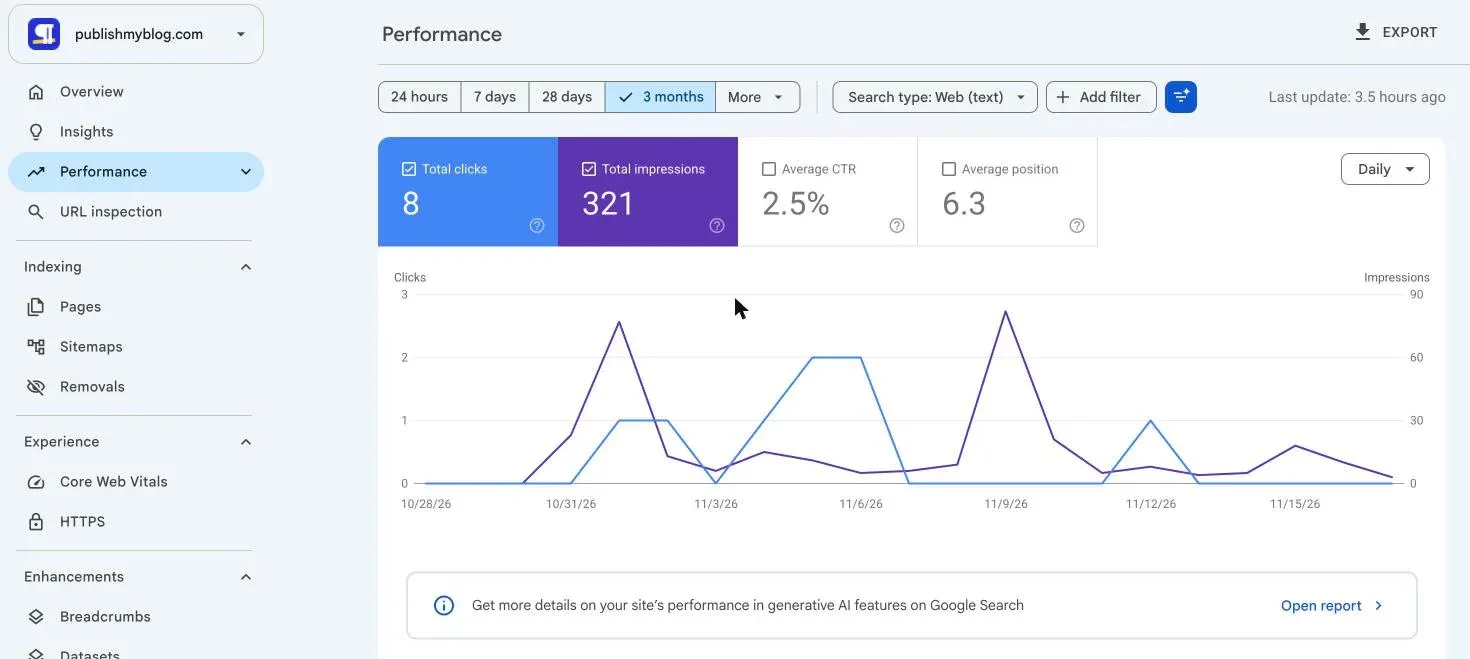
Our three-week-old site has 8 clicks and 321 impressions in Search Console, all 8 from Indonesia, where we work. Here's how to set it up and read it honestly.

How to use Google Search Console comes down to four jobs: add your site, verify it, help Google find your pages, and read the reports the way Google counts them.
The last job is where people slip.
Our own site shows 8 clicks from Google, and all 8 came from Indonesia, where we work. So the report is right, and it still tells you very little about real readers.
Below is the setup, then each report worth your time, with what three weeks of publishmyblog.com’s data could and couldn’t tell us.
What we checked
All read on 19 November 2026 in our own Search Console, a Domain property verified through DNS. We changed nothing.
| Report | What it showed |
|---|---|
| Performance, web search, last 3 months (data to 17 November) | 8 clicks, 321 impressions, 2.5% CTR, average position 6.3 |
| Performance, by country | Indonesia: 8 clicks from 66 impressions. United States: 0 clicks from 188 |
| Performance, by query | 14 queries listed, none with a click, 25 impressions between them |
| Performance, by page | Homepage 6 clicks; Write for us, About and one AI story 1 each |
| Generative AI features (beta) | 17 impressions, no clicks column, a Google marker on 9 November |
| Page indexing (updated 16 November) | 71 pages indexed, 100 not |
| Core Web Vitals | “Not enough usage data in the last 90 days” on mobile and desktop |
| Links | 3 external links, all from bsky.app |
| Manual actions, Security issues | No issues detected |
The 14 queries in the table cover just 25 of our 321 impressions.
Google keeps rare queries out of the table for privacy, while the totals above still count them, and on a small site like ours that covers almost every search.
The Pages tab adds up to 9 clicks, one more than the total: if someone clicks two of your pages from one search, the chart counts one click and the page rows count two.
Then the AI report.
Its marker on 9 November links to Google’s data anomalies page, which lists a logging error that cut AI impressions from 9 to 11 November.
My read is that most of the 8 clicks were us, checking our own pages from Bali. The report can’t tell you who clicked.
One thing I can’t explain: Insights said “No clicks for this time period” for the last 28 days, while the Performance report showed 8 for the same stretch.
1. Add your site as a Domain property if you can
Google Search Console offers two kinds of website property, and the one you pick decides what data you see.
- Domain property (example.com): every subdomain, www or not, on http and https. It needs DNS verification, unless the site runs on Blogger or Google Sites.
- URL-prefix property (https://example.com/): only URLs that start with exactly that text, protocol included.
Pick Domain.
Your www redirect, an old http page and a blog on a subdomain then all report in one place, which is why ours is a Domain property.
That said, URL-prefix still has a use: watching one section, like /blog/, on its own.
Creators get a third kind. Platform properties for Instagram, TikTok, X and YouTube, open to everyone since 29 July, show how your posts do on Google.
Don’t expect numbers on day one.
Google says data collection starts as soon as anyone adds the property, even before verification, and its About the data page gives a new site up to a week.
2. Verify it, and leave the record in place
Verification proves you own the site, and for a Domain property it’s a single DNS record.
- Open the property selector at the top left, click Add property, then choose Website property and Domain, and type the domain without https or www.
- Copy the TXT record Search Console shows you and add it at your DNS provider (Cloudflare, GoDaddy, Namecheap), with the host left blank or set to ”@”.
- Click Verify. If it fails, wait: Google says a new record can take two or three days to show up.
The record has to stay. Delete the TXT record later and you lose verification, and the same goes for the HTML file or meta tag on a URL-prefix property.
A URL-prefix property gives you more ways in.
- An HTML file uploaded to your root folder
- A meta tag in your homepage’s head section
- The Google Analytics or Tag Manager code you already run
WordPress, Wix and Squarespace may have their own setting or plugin for this, so look in your platform’s help pages before you paste tags into a theme file.
Taking over a site? Verify yourself, then remove the old owner’s token.
Google also suggests a second method, in case the first one fails. Ours is a google-site-verification TXT record, and a DNS lookup shows it’s still in place.
3. Submit your sitemap
Open Sitemaps, paste your sitemap’s address and click Submit. As the Sitemaps report help puts it, submitting only tells Google where the file lives.
You need owner rights to submit. No owner rights? List the sitemap in robots.txt.
Two kinds of site can skip this step, by Google’s own account:
- sites on a host like Squarespace or Wix, which probably manages the sitemap for you
- small sites of about 500 pages or fewer, where every page can be reached by links from the homepage
Google tries to read a sitemap as soon as you submit it, then rereads it on its own schedule.
If pages are slow to show up, our guide to getting Google to index your site walks through the Page indexing report and URL Inspection.
4. How to use Google Search Console’s Performance report
This is the report you’ll open most. By default the Performance report shows the last three months (ours opened on Web search), with four metrics along the top.
- Clicks: how often someone clicked through to your site from a Google result.
- Impressions: how often your site appeared. Most results count even if nobody scrolled to them; carousels need a scroll or a tap.
- CTR: clicks divided by impressions.
- Average position: your topmost spot, averaged over every search that showed you. Lower is better, and 1 is the top.
Below the chart, a row of tabs splits the same data by query, page, country, device, search appearance and date, and each one answers a different question.
Click a query, then open Pages, and you’ll see which of your URLs Google showed for it.
Google’s own advice is to focus more on trends in clicks and impressions than on position alone. In my experience, position is the number people misread most.
Then there are three limits to know before you trust any number in the Performance report.
- Delay: data normally takes 2 to 3 days. The 24 hours view shows hourly, preliminary data.
- Time zone: days run on Pacific Time, so they won’t line up exactly with GA4.
- History: the date filter goes back 16 months, so export the data or use the API if you want to keep more.
The table hides some data too.
It shows at most 1,000 rows and drops rare queries, as Google’s troubleshooting page explains, while the totals above it still count them.
5. Find the pages worth fixing
After a few months of data, the Performance report turns into a to-do list. Google’s common tasks and filtering pages cover the moves that matter.
- Low CTR pages: choose CTR, open Pages and sort lowest first, then rewrite the title and description (or the content) so they match the queries the page actually shows up for.
- Compare: use weekly or monthly views, so a Monday isn’t measured against a Saturday.
- Regex: filter queries with Custom (regex). Our own example, (price|pricing|cost), pulls the common pricing searches into one view.
- Branded and non-branded: a query filter that splits searches for your name from the rest. Google says it isn’t there for sub-properties or sites with few impressions.
On a new site, most of this can wait. With 321 impressions there’s no CTR worth fixing yet, and I wouldn’t rewrite a title before a few thousand.
Annotations are the exception. Start them on day one.
- Right-click the Performance chart on the day something changed.
- Type a note of up to 120 characters, like “new theme” or “moved to Cloudflare”.
- Click Add.
Any owner or full user can add or delete them, and a property holds up to 200. Google deletes them after 500 days and asks you to keep names and phone numbers out of them.
You may also spot a filter button with a spark on it.
On ours the button is labelled “Customize your Performance report using AI”. Google’s filtering page calls it an experiment shown to a small share of users, capped at 20 requests a day.
6. AI Overviews and AI Mode in Search Console
Clicks from AI Overviews and AI Mode are already in your Performance report.
But they’re mixed in with the rest. Google’s AI features page files them under the Web search type, and its counting rules say a click on your link in either feature is simply a click.
Every link in one AI Overview shares that overview’s single position.
For a separate view, open Performance, then Generative AI. Google launched it on 3 June 2026 and had it on every site by 31 August.
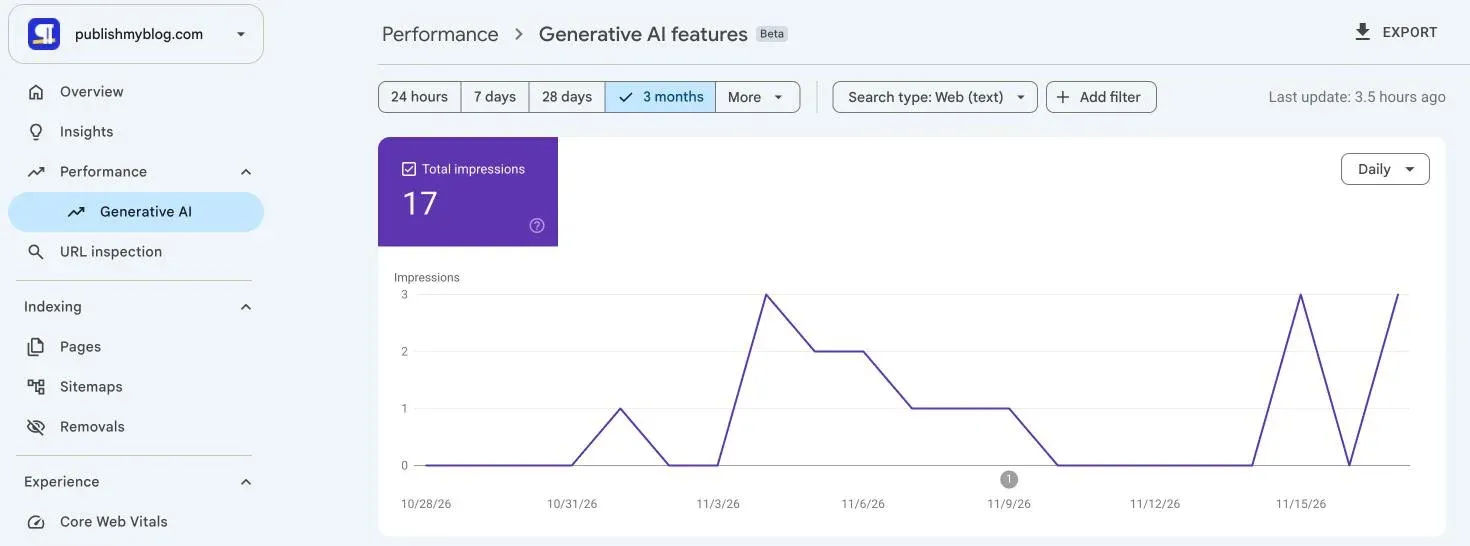
It shows impressions only.
You get pages, countries, devices and dates, but no clicks, no CTR and no queries, which our story on Google’s missing AI click data covers.
So for the visits themselves you still need analytics, and our guide to tracking AI traffic in GA4 shows where those sessions land.
There’s also a switch under Settings, called Search generative AI.
- Include, the default: your links and content can appear in AI Overviews, AI Mode and AI features in Discover.
- Exclude: they can’t, and you get no traffic or impressions from those features. Google says it takes a few days to apply.
Google’s control page says the choice isn’t used as a ranking signal for the rest of Search. Ours is set to Include.
I’d only exclude a site that loses more to AI answers than it gets back in clicks.
Weighing it? Read our guide to blocking AI crawlers first, because a crawler rule and this switch do different jobs.
7. The health reports: open them when something changes
The rest of Google Search Console works like a set of alarms. Know what each one is for, then let the emails tell you when to look.
| Report | What it tells you | What ours showed |
|---|---|---|
| Page indexing | Which pages Google has indexed, and why the rest aren’t | 71 indexed, 100 not |
| URL Inspection | Google’s indexed version of one page, its last crawl and canonical, plus Request indexing | Checked page by page |
| Core Web Vitals | Speed, responsiveness and stability from real Chrome users, in page groups | Not enough usage data |
| HTTPS | How many indexed URLs are HTTP and how many HTTPS, from a sample | 60 HTTPS, 0 not |
| Enhancements | Valid and invalid structured data, one report per rich result type | Breadcrumbs 56 valid |
| Manual actions, Security issues | A human reviewer’s penalty for spam, or a hacked or harmful site | No issues detected |
| Links | A sample of who links to you, and your top linked pages | 3 external links |
Two of them confuse owners of new sites.
The Core Web Vitals report uses data from real Chrome visitors, so a quiet site gets “not enough data”, and you test pages in PageSpeed Insights instead.
The Links report shows a sample of your links.
Google says it can leave out links to pages that aren’t indexed, and it doesn’t say whether a link is nofollow. Ours shows 3, all from bsky.app, where we share our stories.
For speed fixes, our WordPress speed guide starts where the Core Web Vitals report leaves off.
8. Give people the right access
Under Settings, then Users and permissions, an owner can add other people. Google’s permissions page lists the roles.
- Owner: full control. A verified owner proved it with a token; a delegated owner was granted ownership by a verified owner, no token needed.
- Full user: sees all data and can take some actions.
- Restricted user: simple view rights on most data.
Only owners can add or remove people, and a property can have up to 100 users besides its owners.
Hiring an agency or a freelancer? Give them full user and keep the verified ownership yourself.
If they leave, you remove one name from the list, and the property, its history and its verification stay exactly where they were.
How often to open it
Less than you think.
Google’s getting started page says there’s no need to sign in every day. Instead it points to three things:
- the emails Search Console sends when it finds a new issue
- a look about once a month
- a look after you change the site’s content
The Overview page also shows Recommendations. Ours flagged our author page for getting more impressions than usual.

Why it matters
Search Console is where Google tells you, in its own words, how your site does in its results. Analytics sees the visits, and this sees the searches before them.
Still, it’s an alarm before it’s a scoreboard.
On a young site the numbers are tiny, mostly hidden and partly your own clicks, so I’d treat the first months as a warning light for a missing sitemap or a stray noindex tag.
Set it up the day you launch. Problems are cheap then.
If you’re launching now, our website launch checklist includes Search Console, and once traffic comes, the technical SEO audit checklist leans on these same reports.
What did your own Performance report show you first that you didn’t expect?
Common Questions
Should I add a Domain property or a URL-prefix property in Google Search Console?
Domain, if you can edit your DNS. It covers every subdomain on both http and https, so www, non-www and a blog subdomain report together. A URL-prefix property covers one exact address and the pages under it.
Why does Google Search Console show impressions but no clicks for my queries?
Rare queries stay out of the query table for privacy but still count in the totals. On a small site most searches are rare, so clicks in the chart often belong to queries the table never lists.
Does Google Search Console show traffic from AI Overviews and AI Mode?
Partly. Clicks from both are counted inside the normal Performance report, under the Web search type. The separate Generative AI report shows impressions only, with no clicks or queries.


